

- TypeScript
- Python
- API
Choose an outcome (YES in this example) and select its trading identifier based on the market version.The unified SDK uses
assetId for an outcome’s trading identifier: a token
ID for a CTF market or a position ID for a Polymarket Protocol V2 market.
Use the identifier exposed for that outcome.Pass an assetId to the order methods. The client selects the matching
exchange, signing domain, and approval route.Limit Orders
A limit order specifies the price at which you are willing to trade and can rest on the book until it fills, expires, or you cancel it. Use one when price control matters more than immediate execution. A limit order also defines how long any unfilled amount remains active:GTD orders expire one minute before their stated expiration as a security
threshold. To set an effective lifetime of N seconds, use
now + 60 + N. In
addition, the expiration must be at least 3 minutes in the future. Orders
expiring sooner are rejected, so the minimum effective lifetime is about two
minutes.Place a Limit Order
- TypeScript
- Python
- API
Given a
SecureClient, place the limit order and check its
response:1
Place the Order
First, call Both examples buy
placeLimitOrder() with the price and number of shares. The
price must follow the market’s minimum price increment, and the size must
meet its minimum order size. Omit expiration for a GTC order or provide a
Unix timestamp in seconds for a GTD order.10 shares at a price of 0.52 USD per share. The GTD
order has an effective lifetime of one hour.2
Check the Response
Then, check An accepted response includes the order ID and one of these statuses. If
the order fills fully or partially, the
response.ok to determine whether the CLOB accepted the order:tradeIds collection identifies
the resulting trades. When available, transactionsHashes contains their
transaction hashes:A rejected order returns
ok: false with a code and message.Post-Only Orders
A post-only order adds liquidity only: if it would match immediately against the book, it is rejected instead of taking. Use it to guarantee you quote as a maker.- TypeScript
- Python
- API
Given a
SecureClient, set postOnly when placing the
limit order:Market Orders
A market order uses the same underlying order as a limit order but derives a marketable price from current order-book liquidity. This allows it to execute immediately instead of resting on the book. Use a market order when execution matters more than setting an exact price. Read the market’s trading constraints before deciding how much to buy or sell.Place a Market Order
The examples below use Fill and Kill (FAK), which fills available liquidity immediately and cancels any remainder. See Market Order Types for Fill or Kill (FOK).- TypeScript
- Python
- API
Given a
SecureClient, estimate the price and place the
market order:1
Estimate the Price
First, call In these examples,
estimateMarketPrice() to discover the price level the order
would reach at the current order-book depth. For a BUY, amount is the USD
notional to spend. For a SELL, shares is the number of shares to sell,
rather than their USD value.amount: "10" means spending $10, while shares: "10"
means selling 10 shares.The estimate is a snapshot of the current order book. The available price
can change before you submit the order.2
Place the Order
Then, if the estimated price is acceptable, pass it as the maximum price
for a BUY or the minimum price for a SELL, and place the market order:
maxPrice prevents a BUY from crossing a higher price, while minPrice
prevents a SELL from crossing a lower one. If the book moves before
submission, the order may fill only partially or not at all.With maxPrice, the SDK rounds BUY shares down to supported precision
without increasing the signed spend, so the order can match an ask at that
price. If the final fee-adjusted amounts cannot preserve the price bound,
it refreshes market metadata at most once and throws UserInputError
before signing if the amounts are still invalid. Increase amount and,
if set, maxSpend, or choose a different maxPrice.3
Check the Response
Then, check An accepted response includes the order ID and one of these statuses. If
the order fills fully or partially,
response.ok to determine whether the CLOB accepted the
order:tradeIds identifies the resulting
trades. When available, transactionsHashes contains their transaction
hashes:A
delayed response is accepted but has not matched yet. Its
makingAmount and takingAmount are "0", and its tradeIds and
transactionsHashes are empty because no fills exist yet. Treat it as a
pending order rather than a fill, and use real-time order
updates to follow its outcome. To identify
markets with this behavior before placing an order, read
market.trading.secondsDelay.A market order never rests on the book: any amount that cannot fill is
canceled. A rejected order returns ok: false with a code and message.4
Wait for Fill Settlement (Optional)
Settlement happens asynchronously after an order matches, so an accepted
response may not carry transaction hashes yet. If you need them, call
The call waits until every fill identified by
waitForOrderFillSettlement() with the accepted response:tradeIds settles on-chain
and returns the settlement transaction hashes. When tradeIds is empty, it
returns transactionsHashes immediately. It does not wait for a delayed
order to match. By default it waits up to 30 seconds (configurable with
timeoutMs) and throws a TimeoutError if fills are still settling at the
deadline. The executed trades are unaffected.Cap Market Buy Spending
A market BUY’s amount is the pre-fee USD notional. Applicable platform fees and builder taker fees are charged on top. Set an all-in spending limit when the complete cost must remain within a fixed budget.- TypeScript
- Python
- API
Set Here,
maxSpend to the most you want to spend, including fees:amount: "10" requests a 10 USD pre-fee buy, while maxSpend: "10"
caps the total spend at 10 USD. The SDK reduces the signed buy amount so
the order and its fees fit within the cap. Omit maxSpend to pay fees on
top of amount.Market Order Types
A market order uses one of two execution types, depending on whether a partial fill is acceptable:- TypeScript
- Python
- API
Set
orderType when calling placeMarketOrder() on a SecureClient.
Fill and Kill is the default.Create and Post Separately
Create and sign an order without submitting it when you need to inspect it, store it temporarily, or include it in a later batch.- TypeScript
- Python
- API
Given a
SecureClient, create the signed order locally,
then post it when ready:Post a Batch of Orders
Submit several signed orders in one request. This is useful for placing a ladder of quotes across multiple price levels when market making.- TypeScript
- Python
- API
Given a
SecureClient, create each signed order, then pass
them together to postOrders():Example
postOrders accepts between 1 and 15 signed orders per call. Each
entry in responses can independently be accepted or rejected, so check
ok on every entry rather than assuming the whole batch succeeded or
failed together.Builder Attribution
As part of the Builder Program, attach your builder code to orders so matched trades are credited to your builder profile. The code is a 32-byte hex string that identifies your profile.Attach Your Builder Code
In the builder account, open polymarket.com → Settings → Builders and copy the Builder Code from your profile: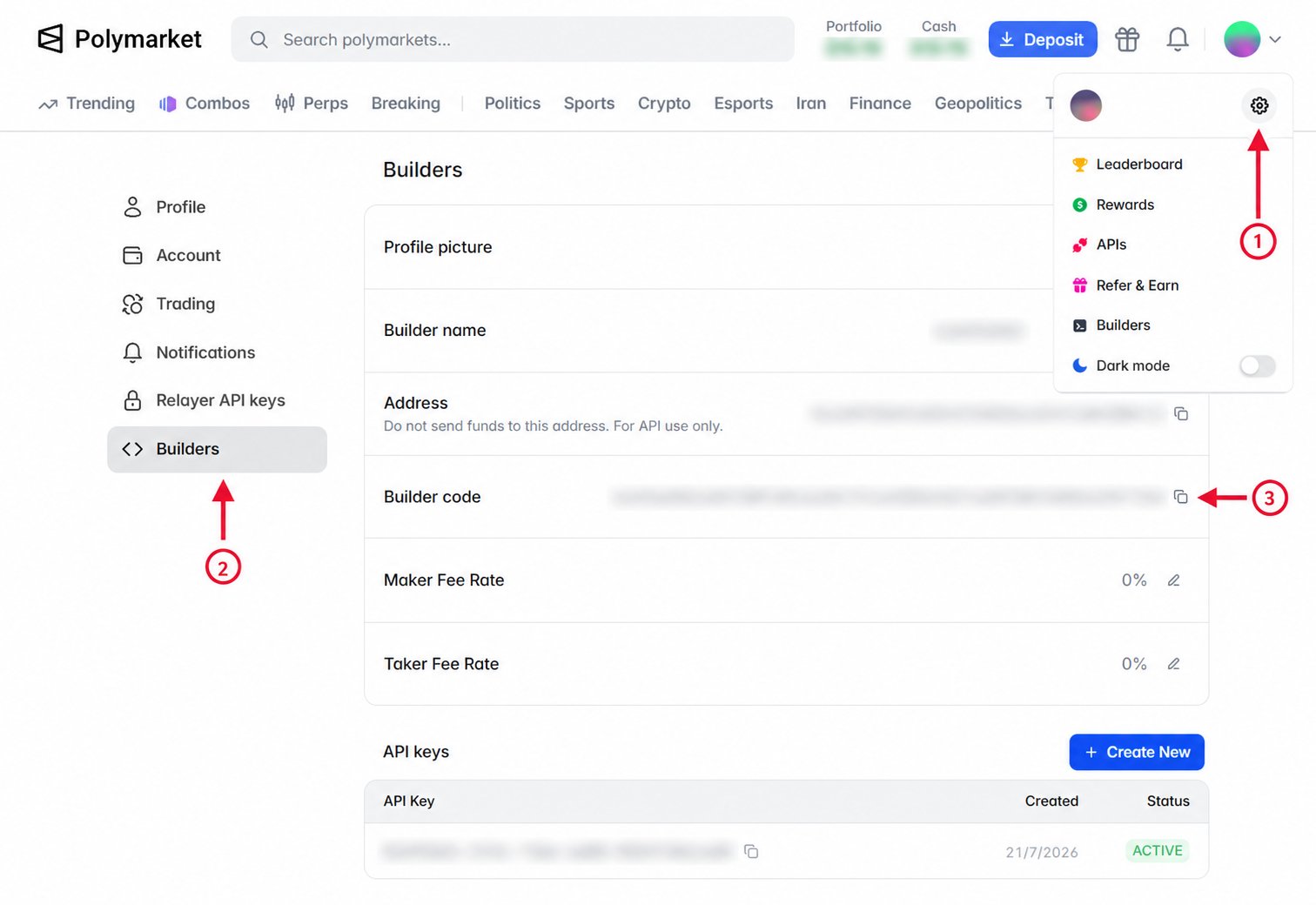
- TypeScript
- Python
- API
Given a
SecureClient, pass the code as builderCode when
placing the order:Verify Attribution
After an attributed order matches, query builder trades using your builder code to confirm that the trade was credited to your profile. Orders that have not matched do not appear in builder trade results.- TypeScript
- Python
- API
Use
listBuilderTrades with a PublicClient or SecureClient, then fetch
the first page of matching trades: